
▪ Select the report template and choose "Open in Designer".
▪ Select File > Print
Output Options for Report Server Designer
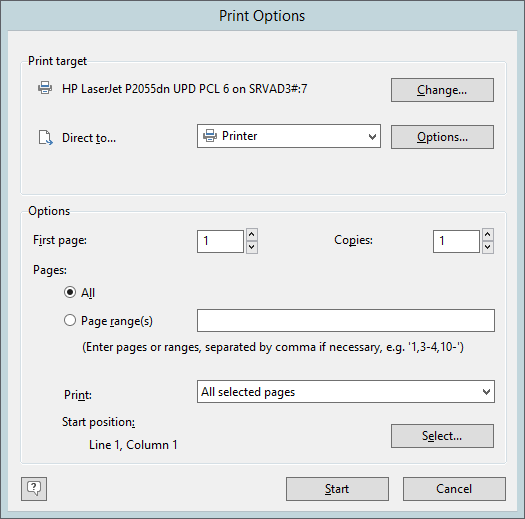
You have various configuration options here:
▪ Under "Print Target", you can change the printer settings. If you have defined different layout regions in the page layout dialog, you can also change the printer settings here for the various regions. Enter the number of copies under "Issues".
▪ "Pages" lets you select certain pages or a page range for printing, e.g. 1, 3-4, 10-.
▪ The "Print" drop-down list lets you restrict the output to even/odd pages or the pages that you have selected above.
▪ Only available for printing via File > Print/Export from the Designer.
▪ Select the output format (e.g. preview, printer, PDF) under "Direct to".
▪ With "First Page", you specify the page number which the numbering starts with.
Figure 2.29: print options
▪ When printing labels, you have an extra "Select" button which you can use to specify the position where you want to start printing the sheet of labels.
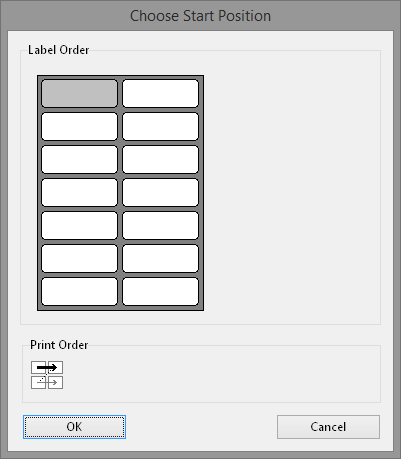
Figure 2.30: Additional print settings for labels
In this way, you can also print sheets of labels that have already been partly used. You will find a sample label sheet for your label project in the dialog for selecting the start position. Click the label where the print is to start. Please take note of the selected print order. You can print not only in rows from upper left to lower right but also column for column or in the reverse direction. The labels will be printed in the specified direction starting with the selected label.
Test Print in the Report Server Designer
Choose File > Print > Test Print (File > Print Sample) to print the current project with sample data. In the print sample, fixed text appears as it is defined in the project; variables and fields however are replaced by a predefined sample text or by a single repeated sample data record.