
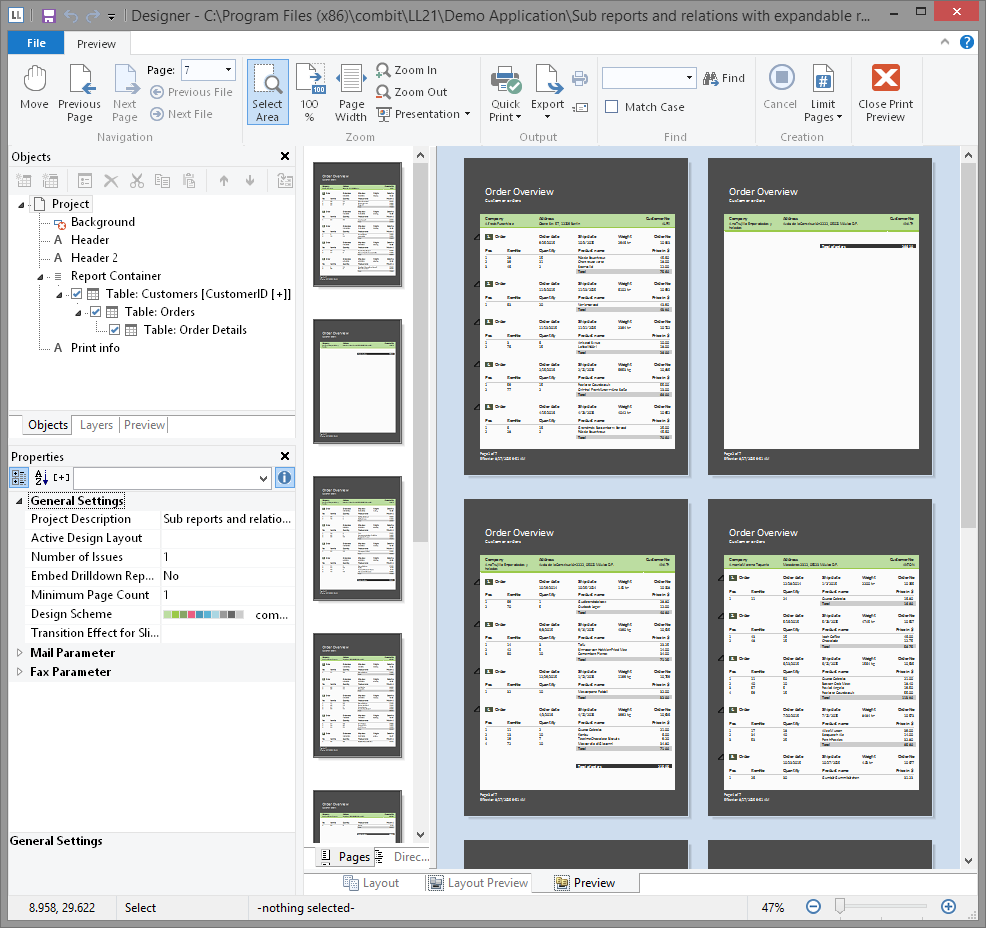
▪ The pages are continuously displayed. Via "Move" you can move the viewing area with the mouse, otherwise use the scroll bar.
Figure 2.32: Real data preview in the Designer
▪ Use "Zoom In", "Zoom Out", "Page width" and "100%" to adjust the view in the workspace.
▪ If you zoom out, multiple pages are displayed.
▪ A double click on a page gives a full page view.
▪ Use the Zoom slider in the status bar to slide to the zoom percentage you requires (50% - 500%).
▪ Hold the Ctrl key and simultaneously rotate the mouse wheel to zoom with the mouse.
▪ With the find function, you can search all pages of the preview.
▪ The "Pages", "Directory", "Index" tabs are for fast, direct navigation. Information of contents and index, see "Common Object Properties" in Chapter "Overview of Properties" in the Designer-Manual.
▪ Via File > Options > Preview, you can specify the maximum number of pages that are to be displayed in the real data preview.
▪ The "Number of copies" specified in the print options is ignored in the preview as this is only relevant for the actual print.