
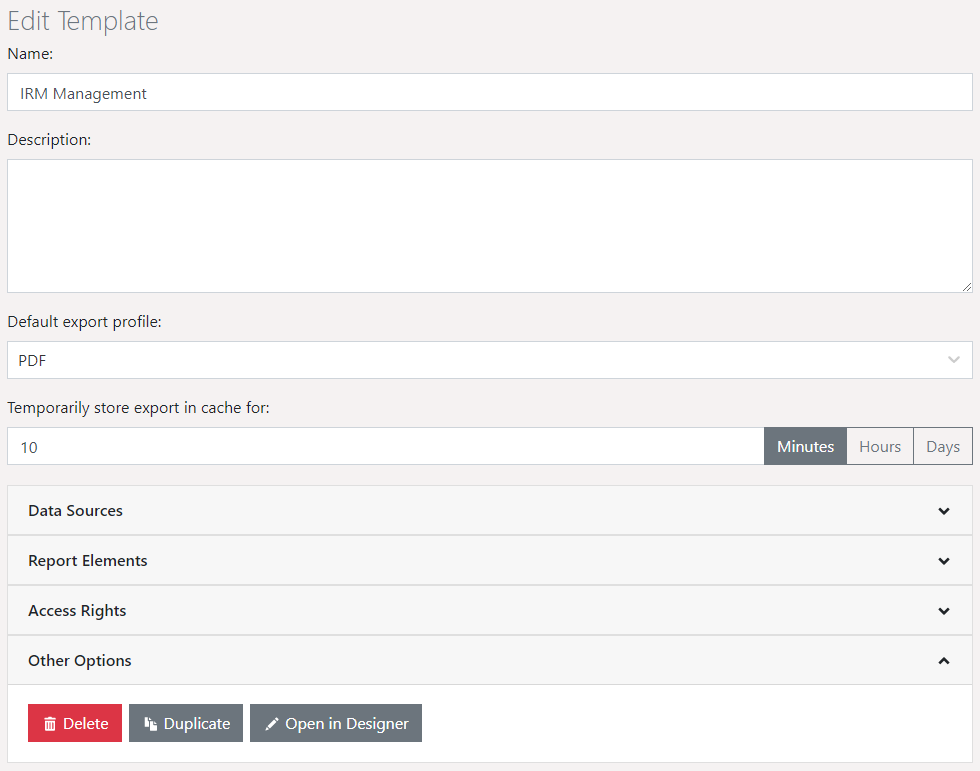
New reports can be generated using "Create Report Template".
▪ Choose an appropriate type of report template. You can choose from the basic templates and templates with an Ad-hoc designer.
▪ Basic templates: With these templates, you can create your report using the combit Report Server Designer. These offer you complete control over the design of the report, but require more design effort. The following templates are available:
▪ Standard: Tables, lists, diagrams and complex reports.
▪ Label: Labels and label sheets:
▪ File card: Letters, master data sheets and forms.
▪ Invoice: Invoices with items (new page for each record from main table).
▪ With serial printing, each new invoice starts on a new page. Therefore, you can enter a main table as the data source. The main table refers to the table where the invoice data is stored (invoice date, invoice no., invoice recipient, etc.). The fields in this table and all tables linked 1:1 will then be available in the Designer as variables in the text fields.
▪ Ad-hoc templates: With these templates (simple tables or diagrams), you choose from a range of preconfigured designs and design your report using the Ad-hoc designer. Later on, you can modify the details of the report using the combit Report Server Designer. You will find additional information on the Ad-hoc designer in the section "Ad-hoc designer".
▪ Select the project type
▪ Labels and cards: These projects are made up of groups of objects which will be printed out individually (cards) or in batches (columns and rows, labels) per page.
▪ Lists: List projects are made up of objects which will be printed out once per page as well as of one or more objects which will be printed out using different content depending on the associated records. The Designer objects table, crosstab or report container will be responsible for such lists or repeated bands and are therefore available only for this type of project.
▪ Enter a name and description.
▪ Select the default export profile. Specify the format in which the report should generally be generated (in quick view).
Figure 2.2: Creating report templates
▪ Time for cached exports to expire. Enter the period of time for which a report is not generated when executed again. The report will be stored in the cache for this period of time.
▪ Language: Language to be used when printing, the set language does not affect the Designer preview. Thus, for example, despite the english system language of the server, the report template can be printed with e.g. german formatting.
In addition, dependent translations can also be defined via formulas:
▪ Example: LangCase$("Hello (Default)", "en=Hello|de=Hallo|es=Hola")
▪ to query language and region: LL.CurrentLanguage
▪ other useful functions: LocCurr$(), LocNumber$(), LocVal(), LocDate$()
▪ Define the data source. Select the data source that should be available in this report. Note that a report will no longer be able to be generated if you remove a data source without specifying an alternate data source with precisely the same table structure. For more information on data sources, refer to the Data sources section.
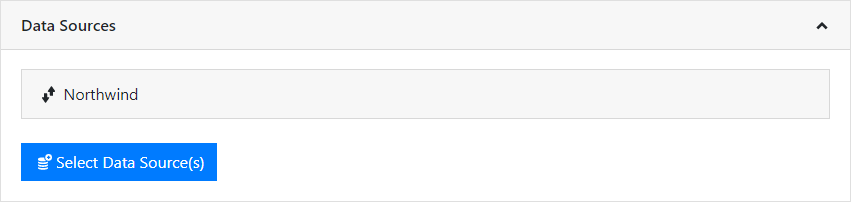
Figure 2.3: Selecting the data source
▪ Assign report elements to this report template. Report elements are not available in the Ad-hoc designer.
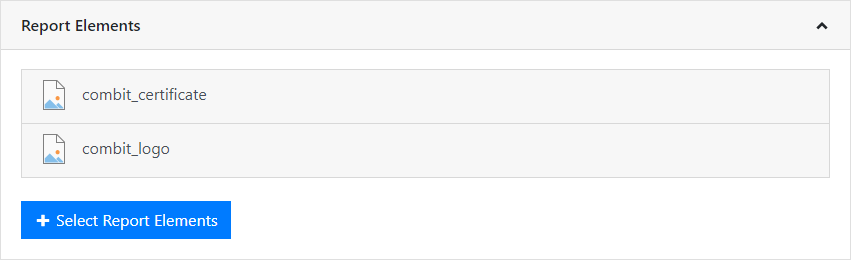
Figure 2.4: Assign report elements
▪ Determine the groups that will have access rights to this template.
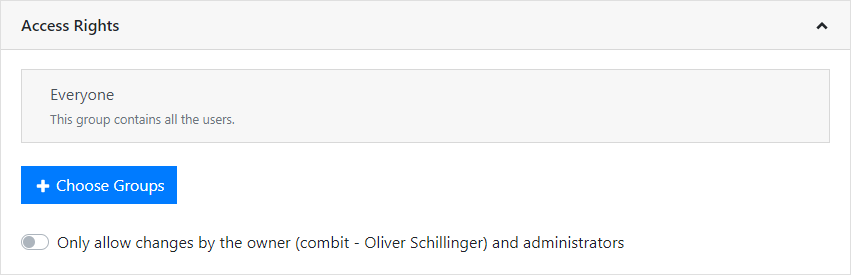
Figure 2.5: Access permissions
▪ Earlier versions: Click on a version entry to restore a previous version of this report template. Doing so will automatically save the current version.
▪ To accept any changes, save the report template.
Tip: The option of downloading the installation program will be offered, if the Designer has not yet been installed on the workstation. For more information on installation, refer to Section Designer installation.