
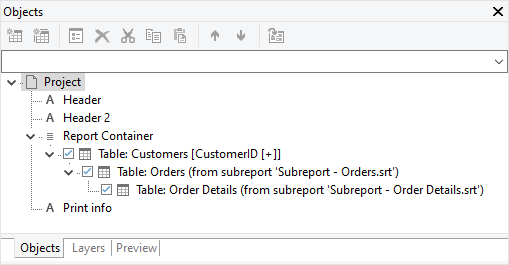
You edit created objects directly in the "Objects" tool window.
▪ All actions are available in a context menu. There are additional buttons in the top toolbar for the frequently used actions.
▪ The currently selected item will be highlighted in the workspace.
▪ By using the checkboxes in the tool window "Objects", you can toggle the visibility of elements, sub elements and branches.
▪ Objects on the workspace may overlap or completely cover each other. Using the tab "Start" (Objects > Arrange) or via context menu, you can rearrange the planes of the selected objects so that they have the order you require (To Front, To Back, Forward, Backward).
Please note that these "planes" (just a term in this case) have nothing to do with the layers. Objects that have been edited using "Arrange" will not have their layer assignment changed.
▪ The object highest in the object list is the object in the background, the lowest/final object to appear in the object list is the object in the foreground.
▪ The object list can be filtered using the input field at the top.
Figure 3.21: Print order in the object list