It is possible to select a design scheme in order to quickly achieve optically appealing results. Diverse pre-defined schemes are available in the list. This option is the project-global pre-setting and is available in the objects via the "Project Design Scheme" item.
Under the "User-Defined" option there is a "…" button available for users to specify a design scheme. This scheme is then provided in the objects via the "User Defined" option.
Figure 13.4: Adjust Design Scheme
The two buttons 'Copy to clipboard' and 'Paste from clipboard' can be used to transfer a user-defined schema from a project A to a project B. To do this, proceed as follows:
1. Modify the design scheme in project A as desired. Then click on 'Copy'
2. Open project B
3. Reopen the 'Customize Design Scheme' dialog via the 'User-Defined' entry and the "..." button in the 'Design Scheme' project property. Then click on 'Paste'
|
Property |
Description |
Value |
Description |
|
Color Foreground |
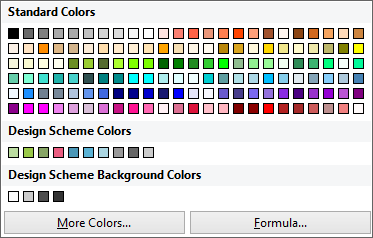
Ten scheme colors for the foreground: available in objects as LL.Scheme.Color0…9 The color can be defined freely using a color dialog, a selection list with predefined colors or using a formula or function ("Formula" option at the end of the list). Use the RGB() or HSL() function for a function. |
|
Color dialog Selection of predefined colors and formula wizard |
|
Color Background |
Four scheme colors for the background: can also be selected in the objects as LL.Scheme.BackgroundColor0…3. |
|
Color dialog Selection of predefined colors and formula wizard |
|
Set To |
If you select a design scheme here, the fore- and background colors are reset to the colors of the selected design scheme. |
List |
Scheme |